The Rankry MCP server lets your AI assistant read your AI visibility data directly. Instead of opening the Rankry dashboard, you can ask Claude, ChatGPT, Cursor, or any MCP-compatible tool a plain question like “how is my brand doing in AI search this month?” and get an answer built from your real Rankry numbers, across ChatGPT, Claude, Gemini, Perplexity, Grok, Microsoft Copilot, and Google AI Overviews. It is read-only, scoped to your account, and live today.
Most marketers and founders already spend half their day inside an AI chat. Until now, checking your brand’s position in AI answers meant leaving that chat, opening a separate dashboard, and reading charts. The Rankry MCP server closes that gap. Your visibility data comes to where you already work.
What is the Rankry MCP server?
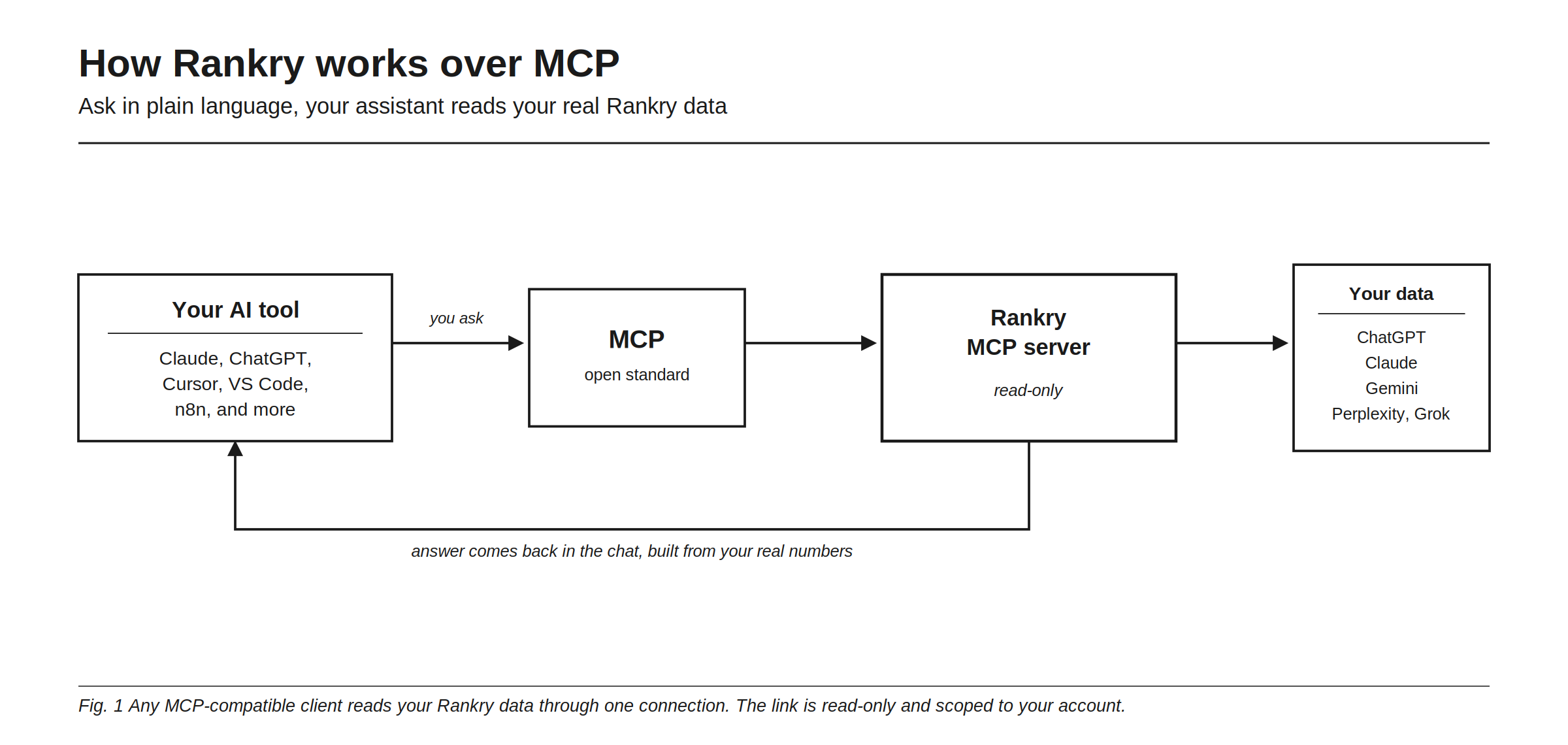
MCP stands for Model Context Protocol. It is an open standard, think of it as a USB port for AI tools, that lets AI clients connect to outside data sources in a consistent way. Rankry runs a remote MCP server, so any MCP-compatible client can read your visibility data through a single secure connection.
In practice, that means your assistant gains a new skill: when you ask about your brand’s AI visibility, it calls Rankry behind the scenes, pulls your actual data, and answers in plain language. No copy-paste, no tab-switching, no manual export.
Which AI tools can connect?
Anything that speaks MCP. That includes:
- Claude (Desktop)
- ChatGPT (developer mode)
- Cursor
- VS Code
- n8n
- The OpenAI and Gemini SDKs
If your client supports MCP with header-based auth, it works with Rankry today.
What you can ask your assistant
The MCP server exposes the same data you see in the dashboard, organized around the questions you actually ask. Across every engine in your report, your assistant can now pull:
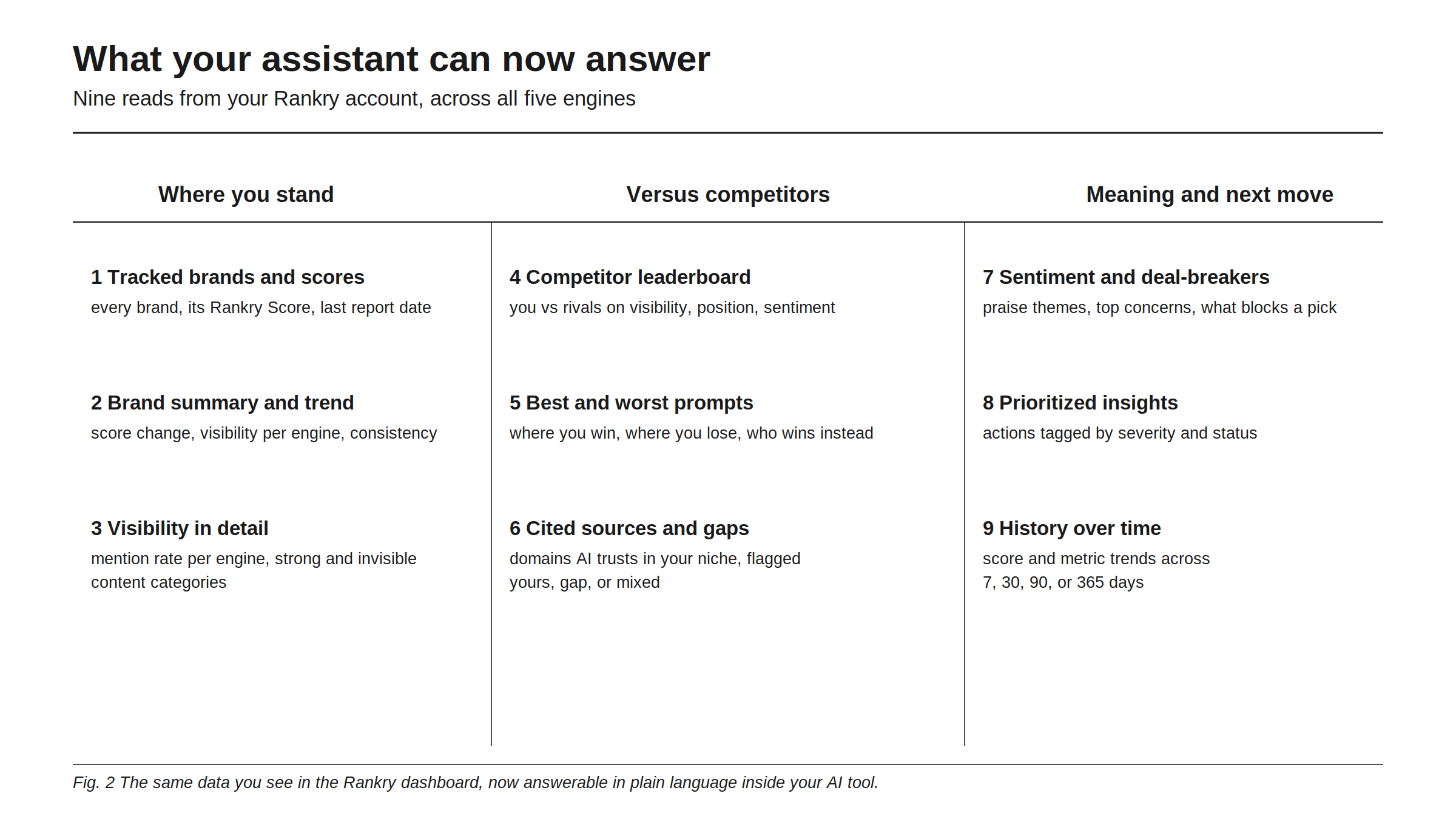
- Your tracked brands with each brand’s Rankry Score and the date of its last report.
- A brand summary: overall Rankry Score and how it changed, visibility per engine, sentiment, cross-model consistency, and the top insights, with the trend over your chosen period.
- Visibility in detail: visibility percentage and mention rate for each engine, plus which content categories are strong, weak, or invisible.
- Sentiment: positive and negative breakdown per engine, the themes AI praises, the main concerns it raises, and the key deal-breaker holding you back.
- Competitors: a leaderboard showing where you stand against your tracked rivals on visibility, average position, and sentiment.
- Insights: prioritized actions tagged by severity (positive, info, warning, critical) and by status (new, improved, worsened, persistent, resolved).
- History: how your Rankry Score and metrics moved over 7, 30, 90, or 365 days.
- Top prompts: your best and worst buyer-intent queries, where you were mentioned, your average rank, and which competitors were named alongside you.
- Cited sources: the domains AI engines cite in your category, each labeled by type (review, community, publisher, competitor, own) and by status, yours, gap, or mixed. A gap means a competitor is cited and you are not. This is a direct GEO and AEO signal you can act on.
Live examples
Here is what that looks like in a real chat. Ask your assistant any of these, and it answers from your data:
- “How is my brand doing in AI search this month?”
- “Which competitors outrank me in ChatGPT and Perplexity?”
- “What sources do AI engines cite about my category that don’t mention us?”
- “How has my Rankry Score changed over the last 90 days?”
- “Which prompts am I losing, and who wins them?”
That third question is the one that tends to change how teams work. It surfaces the exact pages AI trusts in your niche that leave you out, which is the shortlist of places to go earn a mention next.
How to connect in three steps
- In the Rankry dashboard, open Settings, then API & MCP, and create an API key. It starts with
rnk_and is shown once, so copy it somewhere safe. - Add the Rankry MCP server in your client, using the server URL from your dashboard and an
Authorization: Bearer rnk_...header. For Claude Desktop, that goes in yourclaude_desktop_config.jsonas an MCP server block. - Ask your assistant about your brand. It will call the right Rankry tool on its own and answer.
The exact server URL lives in your dashboard so it always points to the right place. You will find it, along with your API keys, under Settings, then API & MCP.
Read-only, scoped, and honest about what it is
A few things worth being clear on:
- It is read-only. The MCP connection reads your data and changes nothing in your account. It cannot edit settings, add brands, or alter anything.
- It is scoped to your account. Your API key sees only your brands, and the numbers are identical to what you see in the dashboard. Same data, same source.
- It is a paid feature. MCP access requires an active paid plan. If your subscription lapses, MCP access closes with it.
One note on what this is not, yet. Today you connect with an API key, which works with every header-based MCP client right now. A one-click sign-in flow is on the roadmap, not in this release. We would rather ship the working version today than promise the smoother one before it exists.
FAQ
What is the Rankry MCP server? It is a remote Model Context Protocol server that lets any MCP-compatible AI tool, like Claude or ChatGPT, read your Rankry AI visibility data and answer questions about your brand in plain language.
Which AI clients support it? Claude Desktop, ChatGPT in developer mode, Cursor, VS Code, n8n, and the OpenAI and Gemini SDKs. Any client that speaks MCP with header-based auth works today.
Is it free? No. The Rankry MCP server is part of an active paid plan. When a subscription ends, MCP access ends with it. See the pricing page for plan details.
Is it read-only and safe? Yes. The connection only reads your data and cannot change anything in your account. Your API key is scoped to your own brands, and the numbers match your dashboard exactly.
How do I connect Claude or ChatGPT to Rankry? Create an API key in Settings, then API & MCP, add the Rankry MCP server in your client with the dashboard URL and an Authorization Bearer header, then ask your assistant about your brand. The full setup lives in your dashboard under Settings, then API & MCP.
Bring your AI visibility into the tools you already use. Start a free 7-day trial, connect over MCP, and ask your assistant how your brand is doing.